Sunday, February 13, 2022

How to Get 'Around' AutoPilot

 Hello All!


Ive been inspired to write this after seeing a thread on Reddit where, or so the story goes, a son had estranged himself from his father and left the household but the father had the family PCs enrolled into an Autopilot / MEM instance and wiped the sons PC. When the son tried to reboot into the PC he was met with the branded Autopilot screen and not wanting to be under his fathers control reached out to Reddit to see how he could avoid Autopilot and re-enrollment. 

This got me curious as to all the ways that could be accomplished. Conversely you could follow the opposite of this post to enforce Autopilot in your organization.

It used to be very easy, but MS has patched quite a few of the holes. In 1903 they removed the ability to start the process but hit the go back button to get to the unbranded sign in screen which would allow a local user account. 

At some point they added in the control in the Autopilot profile to hide the change account options. 



At some point they also introduced a setting that requires internet connectivity during OOBE to proceed. This CSP flips whats called a UEFI variable and persists through a machine wipe. This means that during first time setup this would not be set, since it's not enrolled at that time, but subsequent wipes would be protected. 


With that background info in mind lets get back to our Reddit user. For this initial workaround let's just assume that neither control is deployed. Its default state is not configured so it's not too far of a stretch. 

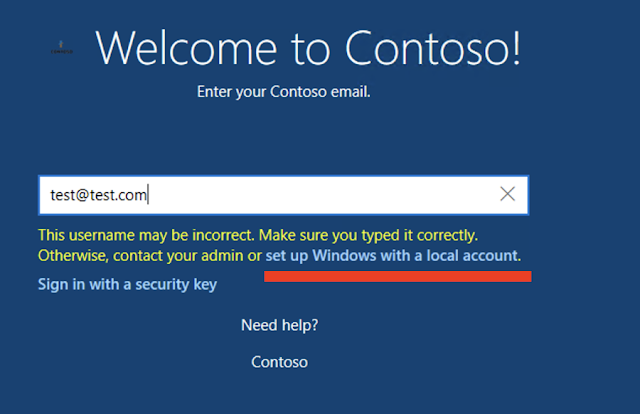
With the account change options set to 'show' all the end user would have to do would be to choose to "domain join" instead or enter an improper email address / password enough times and they would be presented with the option to create a local user instead, like below. 


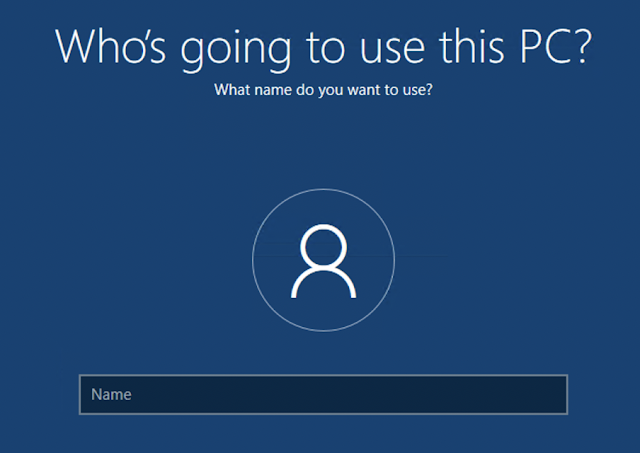
Easy Enough. Now let's move into what if changing accounts was hidden, what then? Well this option only applies to the Autopilot branded welcome screen, not the default screen. We can remove the branded screen by removing the autopilot.json file that is found at C:\Windows\Provisioning\Autopilot. This can be done easily from the logon screen by going into cmd line by hitting shift+F10 and you can even from there just launch explorer.exe to bring up the GUI and navigate to it. Once that has been removed and you give it the ol' reboot you should be met with a local login like so.


Ideally, now with no Autopilot.json file and with a shiny new local admin account thats past the OOBE the machine should be free from management, for now anyways, until the next device reset. 

As for the additional setting or require network during OOBE that stamps the UEFI variables...we are going to have to wait on that. I do not currently know how to change those but when I figure it out I will update this post. My initial thought is that you can launch powershell and change them in some manner in that way or possibly even from the built in preboot UEFI interface. 

For now, remove the .json and don't connect to the internet when you are going through the OOBE....or ya know, just re-image with Windows Home as that doesn't even check into the Autopilot service!

Until next time!


Thursday, January 27, 2022

List Of Possible iOS Identifiers

 Hello Everyone!


In this post I wanted to add in a link to a google doc where I have added a list of possible iOS uri identifiers to exclude some apps from MEMs app protection policies. 

I placed this in a Google Doc because the list was rather long and was taking up the blogs entire front page....which may have been a good thing so people maybe people wouldn't notice how long I go between blog posts haha!

Anyways, here is a link to the doc

https://docs.google.com/document/d/1Y71dgb9O3MJXitSJRryPQFjvEYxAWqgwYFxxC--cBoM/edit?usp=sharing


Good luck out there!

Tuesday, September 14, 2021

Force the Intune Management Extension to Reinstall/Check-in Applications

Hello!


Long time no write!


I find the more engrained I get into something the harder it is to write about it unless I am writing about new features. There are 100 other bloggers out there that do just that though and do it as good or better than I can (Check out Peter Van Der Woude and his blog). 

So this blog usually ends up being things I find interesting or things that I personally want to keep around to reference. This falls into that latter category. 

When deploying and testing wrapped apps there can be a significant between when you make changes and when it gets to device. You could even be hitting the three try limit on the extension and have to wait a really long time. Today I want to show you, and remind future me, how to clear that out so IME sees the app as a fresh install and trys again right away (relatively).

First we have to understand how the IME actually logs its attempts for installing apps. 

IME uses a service that runs on the endpoints and creates reg keys for each app for each user. It stores these reg keys using the users and apps unique GUIDs. It stores the retry attempts in these reg keys as well.

The reg key location is Computer\HKEY_LOCAL_MACHINE\SOFTWARE\Microsoft\IntuneManagementExtension\Win32Apps\<User GUID>\<App GUID>

Now if you wanted to wipe everything out you could just delete everything but lets just say you want to precision strike a certain app for a certain user. You first need to identify the users GUID using the console. Their GUID is actually the last part in the web url after userID, see the image below


Once you have the key you want you may want to copy and past that to notepad because next we need to the same thing for the app GUID


Now that we have the relevent information we can go to the reg key mentioned earlier and just delete the entry for the specific app we want to force a retry on. Here is a screenshot example from a test machine of mine. Remember to delete the app GUID and not the user GUID if you only want to nuke one app.


Once your chosen values are deleted simply restart the IME service and it should reevaluate what apps need tried again shortly after.


That's it!

Hopefully this speeds up some of your testing.

Talk to you all next year!

Tuesday, December 1, 2020

Another Way to Attach Photos and Files to Work Profile Apps

Hello Everyone!

In my previous post I went over one way to share files into the work profile. 

After poking around at it a little bit more I realized there is another way to attach files and photos into work profile apps that may be a little easier for everyone. 

In this walk through we will go through attaching a file to an existing email thread in the Outlook App but the process should be similar.

It is important to note that this will be done on a Samsung S10 and the process may differ on other device platforms.


Choose to attach a file from within your application. This should open a file explorer app


Once you are in your file explorer open the menu, mine is in the top left. Inside the menu you want to choose the 'More Apps' option


The 'More Apps' options should allow you to choose applications and files that exist outside of the Android Work Profile, if your organization allows it in the settings. Once you are able to see you outside files choose the one you want to insert into your mail, Teams message, Onedrive upload, etc. In our case we are going to choose a picture of this awesome and hilarious custom VW Bug from my local Lowes parking lot.


Hopefully between this method and the previous post you can continue using your applications as you always have when enrolled with a Work Profile.

Have a good one!

Wednesday, August 26, 2020

Share Photos With Android Work Profile

Hello again Internet!

 In this post today I would like to do a guide on how to share items with the Android Work Profile. 

When we want to share something in Teams, Outlook, etc most people start off in the app that we are creating the communication from. In our example today we will use Teams. 

The issue is that, due to the architecture of the Work Profile, it will show an empty gallery usually. More precisely it only shows your 'Work' files to choose from.


In order to get around this and to share you personal items, assuming the Work Profile configuration allows it you need to start off in the photo you want to share. Once there you choose the share icon in the bottom left. Please note I tried to sanatize these images of any personal info so expect some red and white MSPaint skills.

EDIT: I just realized the image below may be confusing. The image below is a screen capture of the Outlook App I did earlier. The screenshot below is an image in my phones photos app, not an actual Outlook screen.


Once you have chosen to share the image the share window will come up. This can look different depending on the photo gallery app you have, device manufacturer, and even OS version. What you should see though is an option for the Work Profile. The blue suitcase in the screen grab below.


Once you choose to share the image to the Work Profile a new menu will pop up and allow you to choose which work badged app to share it to. In our test case I will choose Teams.


Once you make your selection it will open your work badged app and allow you to choose which communication channel to share the image to.


Once you choose your chat, I just chose Joe from my recent chats list, it will upload the image into the chat and you can then send it.


Hope this quick tutorial helps some of you out there and allows you to continue communicating in the ways you have been in a new Work Profile world.


Have a good one!

Thursday, August 20, 2020

App Protection Policies and Outlook Add-Ins

Hello Everyone!

Back to the technical side of the house today.

In this post I want to talk about a lesser known gap within Intune App Protection Policies, also known as MAM. 

When protecting the Outlook Mobile App there is a small hole that allows corporate data to escape the containerization policies. These are the 'Add-Ins' in the app. These loop in third party services into the Outlook App such as Trello, Wrike, Evernote, etc.


The issue is when you add these extensions you can log into them with a personal account. The App Protection Policies can not distinguish data going into this add-in. I suspect, because it is solely contained within the Outlook App itself, the policy views it as data just moving around internally into the app.

The work around for this is not great either, but its not terrible in my opinion. It really is something that should be disabled anyway for security sake. The fix itself is to remove the ability for end users to allow add-ins. The reason why this is not a 100% great fix is because this permission applies to not just Outlook App, but also OWA and Outlook desktop. 


Once you disable these permissions the user will no longer be able to select add-ins and when they try they receive the message below. 


Hopefully this can close a small hole some of you may have in your org today.

Have a good one!

Edit 3/26/2021 I have received this from a Microsoft contact I have

The good news is this has got into the roadmap now , we will soon provide a way through MAM app config to control this so that add ins can be disabled only on the mobile app. ETA for this is H2CY21 


Thursday, August 13, 2020

Personal Thoughts on Mobility

 The quiet side of the cloud evolution

    For a few years now the next evolution for most businesses has been the cloud. Yes, I know what you are saying, the cloud is old news and people have fully adopted the "cloud" some years ago and are on to bigger and better things like automation, a.i., IoT, and of course DevOps. This is not everyone though, this is not even the majority of businesses I interact with.

    When people think of the cloud and the benefits it offers most businesses talk IaaS, PaaS or SaaS. How can we lift and shift our infra, our apps, our business processes? What has caused less of a stir overall is the lift and shift of endpoints and management to cloud enabled, modern management platforms. This, to me, is the quieter side of the cloud.

    The next evolution of endpoint management has undergone, and will continue to undergo, massive changes. This is all driven by the changes in business functions and the changes to the way employees work. Almost gone, but not quite, are the days of assigned cubicles, restrictive and ineffective policies, and the feeling of needing a body in a seat to have your workforce be productive. These business changes driving the changing technology are only made possible in a cloud platform. 

    What do these technology changes try to solve? In short, it is about trying to increase the ability to work anywhere, from any device, while maintaining security. Your office network is no longer the security boundary, you no longer host business critical apps on your hardware with non web based logins, sprawl of shadow IT can overwhelm a business now because if there is an easier way to complete a business process than what IT offers to the end users they will find it and adopt it. 

    How do we address these needs? It all starts with Identity. With the goal of working from anywhere that tosses out the network as the security plane and from any device tosses out traditional device management. Identity is the new security and control plane as that is the common thread between anywhere and any device. This means that a true modern management solution has to have an Identity solution attached to it with deep integration, such as Microsoft Intune or VMWare's Workspace1. Without Identity your cloud enabled endpoint solution is not truly modern management capable.


Covid-19 and the great experiment

    In late 2019, into 2020, and at the time of this writing, Covid-19 is a global pandemic. Many business and workers can not work, have been furloughed, or reduced their hours. This has hit business across all sectors in a meaningful way. 

    For some business and workers its as if we have been forced into this grand experiment who's goal is to answer two questions:
1. Can you work remotely?
2. Can you do it securely?
As the world has come to find out, the answer is a pretty solid yes, we can work remotely and in a meaningful and productive way.

    Modern management can make this forced transition so much smoother for the end user and the business. The ability to use mobile platforms such as iOS and Android phones or tablets, the option to do BYOD for not just mobile but Win10 as well, and the ability to do this securely because we have the proper identity controls in place, allow the workforce to be safe and productive while allowing the admin the management and security they require at the same time.

    Is this forced experiment a success? In most ways yes, but there are some challenges. Change is hard, no matter the circumstance, and getting a traditional business to adopt modern management can be difficult in the best of times. Things are not the same in the cloud world. Reporting is different, security is different, some things are actually lacking or missing and we have to find creative solutions to these things. Because we are a cloud platform though we can move with incredible speed, making changes to the system and available controls constantly. While other products have had a handful of decades to mature, where most modern management platforms have only had roughly 5 years give or take, modern solutions are already catching up due to the power of being built on a cloud platform.

    This is all mostly just me rambling but if you have made it this far I want to leave you with a couple solid take aways. Do not be afraid to change and to adopt a mobile endpoint solution, allow your users a little more freedom in choosing where and how the way that they work, and when someone mentions the cloud remember that includes endpoint management too.

Wednesday, August 5, 2020

Azure AD Hybrid Join Over VPN Issues

Hello once again! Long time no talk...read?

In this post I wanted to talk about the way Hybrid AAD Join works over VPN and an interesting communication I had with a Microsoft contact of mine recently.

I have covered Hybrid AADJ in the past, link here. Adding in the VPN adds a new wrinkle into the equation that is supposed to be solved by one of the HAADJ scheduled tasks. 


HAADJ creates a scheduled task that runs the dsregcmd.exe command. This command is built into the Win10 OS and this task is also built into the OS and have been running since day 1. These are located at Microsoft>Windows>WorkplaceJoin. This task has 2 defined triggers


The first trigger runs the dsregcmd at the initial logon. This does not help our VPN users at all unless you are deploying a prelogin VPN like Always-On VPN or Direct Access. The second scheduled trigger is supposed to kick off every hour after a reboot and generates a log in event viewer with ID 4096


This would allow a VPN user to reboot, login, and trigger the once an hour request, and if still connected to the VPN in an hour kick off the Hybrid Join process. This was not seeming to happen though. The timings of this event were very sporadic. I brought it up to a contact I have at Microsoft and it appears there was a bug that needed fixed! I have not validated with them what version/when/how this was going to be in place but if you are having issues with VPN+Hybrid Join hopefully it should be fixed in a future build.


Until next time fellow IT explorers

Tuesday, January 7, 2020

White Listing Apps on iOS and Still Allow iCloud

Hello internet people!

Wanted to post about a recent issue that came up at a client. This particular client was using corporate owned Apple Business Manager (new DEP) devices that were being locked down with a white list of applications. This customer also wanted to allow people to sign into iCloud to retrieve their personal contacts and photos and things like that. 

The issue was every time we attempted to sign into iCloud it would fail. We narrowed it down to the white list policy by flipping the policy off and trying again, seeing a success, wiping and flipping the policy back on and seeing a failure again. 

After we had narrowed it down I did a little digging and found this gem

https://support.apple.com/en-us/HT209205

Maybe this was common knowledge, but it wasn't for me or the customer I was working with.

Sure enough after adding com.apple.CoreCDPUI.localsecretprompt to the app white list we were able to log into iCloud without issue. 

If you are wondering what I mean when I say an app "white list" inside of Intune its the show/hide application settings and looks like the image below.


Hey, I mean is the word 'secret' is in the app name it cant be that well known right?

Have a good one!


Wednesday, December 18, 2019

Android Enterprise Dedicated Devices and SCEP

Hello Everyone! 

Recently SCEP certificate authentication was released for Intune with Android Enterprise devices. This means both COPE and Kiosk devices or whatever they are calling them these days.

I just finished setting this up for a customer and let me tell you there were some challenges. I don't have any screenshots of the issues but I just want to run down a list of gotchas that we ran into to help you do the same. Once we had all other platforms working (iOS, Android Legacy, Android Work Profile) we thought Android Fully Managed would be a simple reconfig. It was not. 

1.) Deploy the sub cert out with the root, this should always be done in my opinion.

2.) Make sure the devices have a Compliance Policy assigned. Our kiosk devices originally were marked as non compliant because we did not have one assigned as they were already so locked down (this is just the way the customer had their environment configured). We were seeing the SCEP, Root, and Sub certs stuck as 'Pending'. This went on for a day or so until we got Microsoft Support on the line who suggested the Compliance policy as a general fix. He eluded that this is something he does as a baseline because of, well, just Intune being Intune. 

3.) I have done iOS kiosk devices in the past that are without user affinity and I have used the DNS attribute in the same name historically. You can not do that with Android from what I have found. The WiFi settings on the device itself will not recognize a certificate unless it has the UPN in the SAN name. It will never even attempt a connection if you give it a DNS SAN cert.

4.) This could be just coincidence but we supplied an external identity in our WiFi profile as well. We just used a generic name of Android Kiosk and once it actually authenticated the identity changed to {{serialnumber}}@domain.com like it was supposed to

5.) We had some issues with time outs attempting to fetch the SCEP certs and WiFi policies. We were able to solve this by syncing from both the Intune app and the built in Android Device Policy app. My running theory on this (and im sure I am going to butcher it) is that the Intune certificate connector doesn't look at any Google API syncs from the Device Policy app. So when you sync from there you receive the SCEP profile, you hit IIS, hit the connector, and then it just sits waiting for the Intune sync to validate and eventually times out. Moral of the story is to sync from both the Intune App and the Device Policy App.

This is all also assuming you have a healthy SCEP and PKI infra underneath everything which can be a task itself!

These are all just some thoughts from someone who has spent far too long poking at SCEP. 

Send help in the form of miniature paints and Chipotle.

Best of luck!


Monday, October 21, 2019

AAD Connect and Pass Through Auth Possible Gotcha

Hello again everyone!

Been awhile!

I want to make a quick post about an issue I ran into out in the field in regards to AAD Connect, Pass-Thru Auth, and log on restrictions in local AD. 

**Spoiler Alert** Read your documentation thoroughly and you can avoid stupid mistakes like this one!

Lets start off with a brief explanation on what Pass-Thru Auth is. This method of auth/ssso is similar to ADFS. When you attempt to auth against O365/Azure AD it will send the request back on premise to an agent that is installed on a member server. 

There are certain requirements that this member server needs that we wont go into in this post, such as line of sight to a DC, multiple agents for HA, etc, etc.

Now onto what the issue was.

At a client we recently had a group of users, well maybe 'users' is not the correct word for it, nor is 'service accounts'. It was a handful of user objects in AD that the security team used to log into a very specific set of workflows on premise and into a couple services in the cloud. 

They just stopped authenticating one day. 

When trying to auth against a cloud service they would receive this error 'Service is currently unavailable, please contact support for further help'

When we looked at the sign in logs inside of Azure AD this is what we saw.


We tinkered with the idea that AAD Connect was not syncing the password so we took a look at the health monitor. Everything looked good but thats when I saw they were using Pass-Thru Auth. 

We dug a little deeper and found out that this user account had a log on restriction on it in local AD that was just implemented.

(this photo from my lab, hence not sanitized. I dont care if you try to compromise Zangief, the red cyclone will pile drive you)


Well there is our culprit. When using Pass-Thru Auth and you are doing log on locally restrictions you need to add whatever server the agent is on into the log on restrictions


Once the agent servers are added you should no longer be barred from accessing any other services. If you need to lock down your cloud services for these accounts that is where Conditional Access come into play. 

Moral of the story? Check your documentation when you make a change. This is laid out in the Pass-Thru Auth doc, although it is tucked away under the 'troubleshooting' doc and not the main concept or implementation document.


Hope this helps someone else out before they waste a few hours trying to figure out what the issue is.

Until next time everyone!


Tuesday, August 13, 2019

Intune GPO Enrollment With MFA Quick Tip

When enrolling a device that is already Hybrid Joined you may run into an issue when the account that is first logging into the machine has MFA enabled on it. 

Depending on how you rolled out MFA, if you did the entire identity option in the classic portal or if you are using CA and you choose all cloud apps as your MFA target you may run into an issue that will require users to complete an MFA challenge to enroll the device into Intune. That prompt usually takes the form of a notification that reads something like 'your account needs attention', 'there is an issue with your account', or 'login to fix your account', etc...


Once you select this prompt a traditional modern auth window should pop up and ask for an MFA prompt. Once you complete this the device should then enroll after some time has elapsed. 


To remediate this either complete the prompt, move your MFA to Conditional Access, or exclude Intune Enrollment options from your MFA policy (which sometimes does not work as 'All Cloud Apps' protects some backend services that you can not exclude when included in a CA policy)

Hope this helps some of you out.

Tuesday, June 18, 2019

Intune GPO Enrollment General Info

Just a quick note on how to enroll an existing domain joined device.

If you have not yet, a prerequisite for the GPO enrollment is Azure AD Hybrid Join. You can find directions on how to accomplish this here

https://docs.microsoft.com/en-us/azure/active-directory/devices/hybrid-azuread-join-managed-domains

You can also find some more background information on it here

https://www.amobileattempt.com/2018/07/hybrid-join-azure-ad-and.html

Once you have that completed and are running the correct version of windows, I recommend at least 1803, and have your GPO store updated as such you can create the new GPO and deploy it to your Hybrid Joined Devices. Information on that process can be found here.

https://docs.microsoft.com/en-us/windows/client-management/mdm/enroll-a-windows-10-device-automatically-using-group-policy

What this article from Microsoft doesn't tell you is where you can find the event logs for this process or what the error codes you might find are. The location in the event viewer is 

Applications and Services Logs/Microsoft/Windows/DeviceManagement-Enterprise-Diagnostics-Provider/Admin


MS does offer additional tshooting help in some tucked away corners of their platform that I want to gather here. Use the below links as a starting point. Good luck!

https://support.microsoft.com/en-us/help/4494359/troubleshoot-intune-windows-10-group-policy-based-auto-enrollment

Tuesday, April 2, 2019

Intune App Protection Policies and iOS Exemptions

Disclaimer: While the below information should be true, it can still be hit or miss getting this to work!

Hello Everyone!

No amount of searching has been very helpful for me personally when trying to find iOS application identifier URLs. 

A URL identifier is a unique name that each iOS application must have. Using this name an existing application on an iOS device can call upon that app to perform actions, such as open a file. 

To my knowledge there is no list out there for such identifiers. What I would like to do is start that list here in this post A Mobile Attempt: List Of Possible iOS Identifiers

Edit: 5/2021 If something is not on that list you can try the simple method below of follow the more in depth method here https://c7solutions.com/2021/04/intune-mam-exemptions-discovering-url-protocols

My only methods to finding out this URL identifier are to either ask the developer or to take a guess and test it inside of safari. If you open safari and type the following into the address bar

guessedappname:// 

You should get a result of either app not found, or something that asks if you would like to allow an app to open the webpage. For an example using Salesforce (salesforce1://) see screen shots below.

BAD GUESS


CORRECT GUESS

Without further ado here is the very short list of ones I have used in the past. If you know any additional ones leave a comment below and lets get them added to the list.


  • Salesforce - salesforce1
  • Go To Meeting - gotomeeting
  • AutoCAD DWG Viewer and Editor - autocad
  • Webex - wbx
  • Zoom Cloud Meetings - zoomus
  • Slack - slack
  • Apple Maps - maps
  • Google Maps - googlemaps
  • Docusign - Docusignit

The items on this list were generated by myself and the community. I have not verified the accuracy of most of them. I am asking for the communities help in either adding to the list or for a more foolproof way of finding out the applications URL identifier.

Thanks everyone!

Tuesday, March 12, 2019

The Intune Exchange Connector Workflow and Gotchas

Hello readers!

In this post I want to talk about some of the Intune on-premise Exchange Connector gotchas and how the communication flow works. 

What is the Exchange Connector?


The Intune Exchange Connector is a piece of software that you download from the Intune portal and install on your Exchange server. Specifically the CAS role if you still have seperated roles. Installation instructions can be found here.

https://docs.microsoft.com/en-us/intune/exchange-service-connector-configure

Please note that the section on the 'Service to Service' connector should be ignored. That feature is being deprecated and was honestly never needed in the first place.

I dont want to go over installation, the Microsoft document does a decent job of that and its fairly self explanatory. I do want to touch on the communication flow. It looks something like this,

For iOS, and Knox devices there are 2 routes. Either you install the company portal first, or you try to add an EAS account first. We will go over the adding an EAS account scenario.

1. End user adds thier EAS account to their mobile device
2. After some time the Intune connector will sync the EAS record up to Intune
3. If the EAS record gets synced up and there is no corresponding MDM record the Intune Connector will set the device from allowed to blocked
4. The end user will recieve an email asking them to enroll into Intune
5. The end user enrolls the device into Intune and creates an MDM record
6. The EAS record and MDM record merge to become a EAS/MDM record in the Intune console
7. The connector will do another sync and check that the record is merged. If so it will remove the device from blocked back to allow

Where this process gets tricky though is for non-Samsung Androids. For some reason, and this may change with Android Enterprise, when a regular Android device enrolls into Intune it does not report its Active-Sync ID. They way we get around this is by using the link in the email notification we receive on the device that says we've been blocked. This link contains our EAS ID and will communicate that to the Intune Service. Without this link our EAS record will never merge with the MDM record when enrolled.

This also makes it tricky to use any type of non native email client as these clients create their own EAS record but can never create an MDM record to match to. The MDM record is always owned by the device not by the email clients on it, if that makes sense. Long story short you have to use the native mail clients when doing this or you have to create an exception for certain platforms.

I will say it again, non-Samsung Android devices have to enroll via the email notification!!! Just going to the app store and getting the company portal app will not work. Enrolling using the app before you receive the email notification will not work.

Here is where the gotchas come in to play. There are two main ones that I want to cover. 

When setting up the connector it asks you to enter a notification account. You need to enable that and MAKE SURE THAT ACCOUNT HAS A MAILBOX!


Without a mailbox the end user will never receive the email asking them to enroll with the link that contains their EAS ID. 

Second gotcha is that this service relies heavily on the Autodiscover service. Very heavily. If your Autodiscover is not healthy then this process will fail. One specific example of this when working through this in my lab was that I did not have an internal DNS record for Autodiscover.rollerlabs.com. This is because internal Outlook clients do not use the DNS record to find AutoD, they use the internal URI that is set within Exchange. I never had a need for an actual internal DNS record before. 

The connector was reliant upon that to find the Exchange server, even though you specify in the connector what your server name is, it will still look at AutoD.


Once I added the internal AutoD record I was able to receive the enroll now email.


This is just an image pulled out of a search but it lets you see the format of the expected email. Please note that the activate/enroll email with link that contains your EAS ID is not the same as the email generated by the exchange server that tells you your device has been blocked. The activate link will come from the Notification account.


Hope this is helpful to someone out there. Is anyone still using Exchange on premise anymore? Hello? Bueller?


Thursday, February 28, 2019

SSPR Note From The Field

Hello Everyone!

Today I want to talk about a little issue I found when deploying SSPR at a customer. We enabled write back in AAD Connect, used a test group to start with in Azure AD, set all of our options up, created a new test user on prem and synced it up into the group. 

Everything appeared to be working. 

When we rolled it out to the general population (without forcing enrollment so most of production never even knew something was wrong when it broke) we started seeing some weird behavior on our existing users. When they would go to reset thier password we would get this error in the portal


Except everything did meet the policy. We then traced it back using a few various logs. One place where nothing showed up was in the Synchronization Service app on the AAD Connect server. Where we did see something was in the Azure AD Audit Logs


And the Event Viewer on the AAD Connect server as well


Come to find out most existing accounts had the restriction of 'User cannot change password' set in their account options in Active Directory from some past project that the current admin was not aware of. 


If your running into a similar situation maybe take a look there. This can be fixed either manually, with PowerShell, or as luck would have it this is one of the options you can set when you select multiple user objects in ADUC.

Good luck!

Monday, October 8, 2018

Securing Traditional Domain Joins

Hello Everyone!

My bread and butter are EMS deployments and some general O365 security talks. 

A lot of my customers really like the option to limit logins to certain cloud services to only Hybrid Joined machines using Conditional Access. 

For those unaware, at a high level, the Hybrid Join process will automatically join a domain joined Windows 10 machine into Azure AD. 

When I help people with setting this up I always check to see if they have modified who is allowed to join a computer to the domain. At the time of this writing (Server 2016) the default is that any authenticaed user can join up to 10 devices to the domain.

Thats right folks, by default you do not have to be a domain admin to join a machine to your domain. Above the obvious issues like clutter in AD, duplicate objects, SID issues, etc there is also the issue that the person who joins the object to the domain becomes the owner of that object in AD and can see some sensetive attributes.

Anyways, in our case this almost invalidates the reason most companies want to do Hybrid Join, which is to prevent personal machines from accessing corporate cloud resources. If the user brings thier laptop in though and decides to join it to the local domain then were back at square one. 

The easiest way to fix this is with a GPO on your domain controllers.

The GPO is located at Computer Configuration > Windows Settings > Security Settings > Local Policies > User Rights Assignments > Add Workstation to Domain


Once you find the GPO you can add whatever group you would like to keep it locked down.


Just a little tidbit that some people dont realize! I think were all so used to only having an admin join a machine this can slip through the cracks.

Until next time, have a good one.